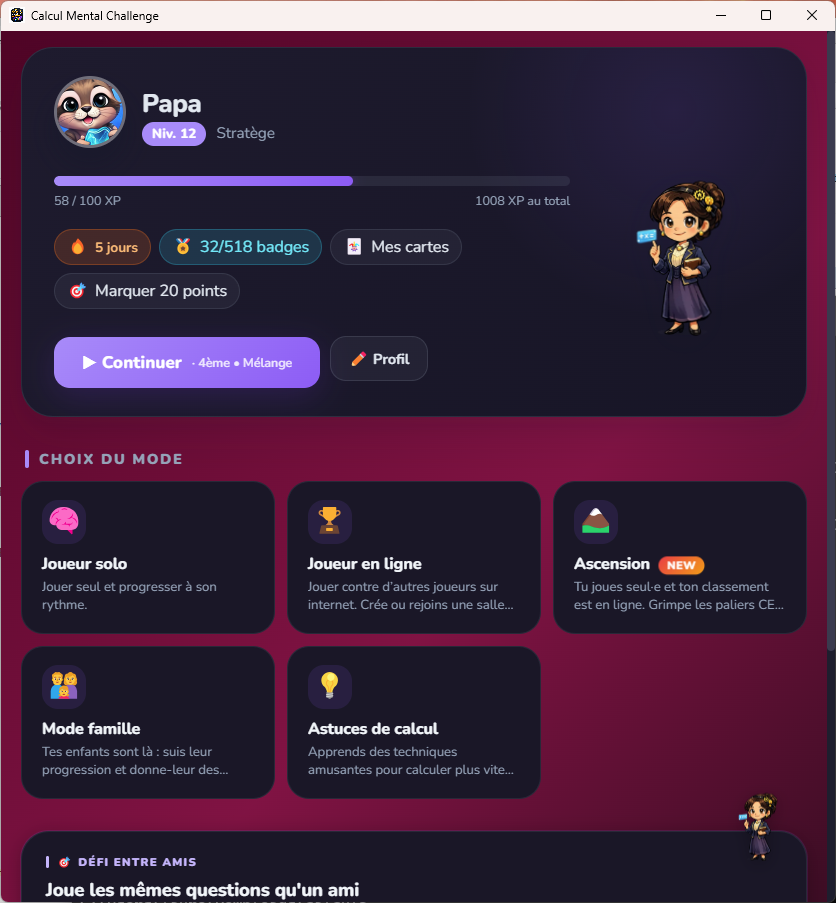
The parent home screen
Once signed in, your parent profile shows your level, badges and access to the main modes. The « Family mode » button takes you to children management.
Create your family, add your children, assign them homework and track their progress — all in just a few minutes.
In 5 steps, your family space is ready and your children can receive their first assignments.
Launch Mental Math Challenge on your computer, phone or tablet and sign in to your account.
On the home screen, choose « Family mode » from the parent options grid.
Pick your label (Dad, Mom, Grandma…). A 6-character invitation code is generated for the second parent.
Enter each child's recovery code (or scan their QR code). Up to 6 children per family.
Pick a child, click « Homework » and configure the exercise. It appears immediately on the child's side.
Once signed in, your parent profile shows your level, badges and access to the main modes. The « Family mode » button takes you to children management.
An invitation code lets you invite the second parent. Each child joins the family using their recovery code (generated on their own profile) or by scanning their QR code.
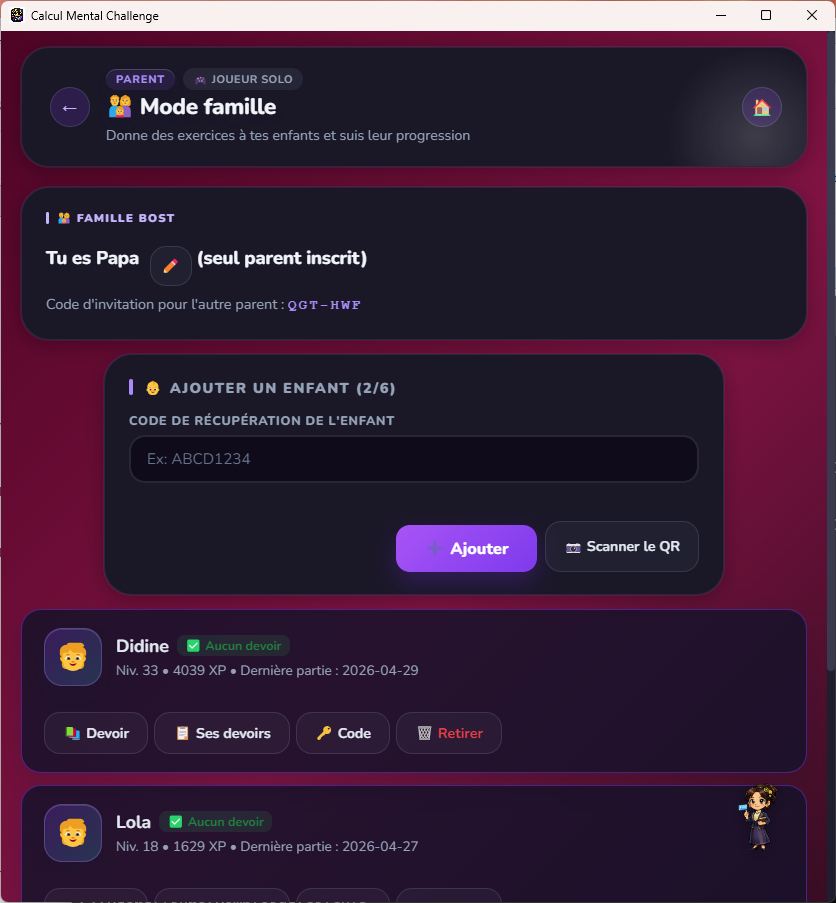
Dad, Mom, Grandma, Stepdad, Tutor, Godparent… pick the label that fits you. The second parent joins with the invitation code.
Each child has their own profile, badges and progress. You see everything without mixing them up.
If scanning doesn't work (no camera), just type the recovery code that the child finds in their profile menu.
One child, one specific level, one chosen operation: you decide exactly what they'll review and how many times.
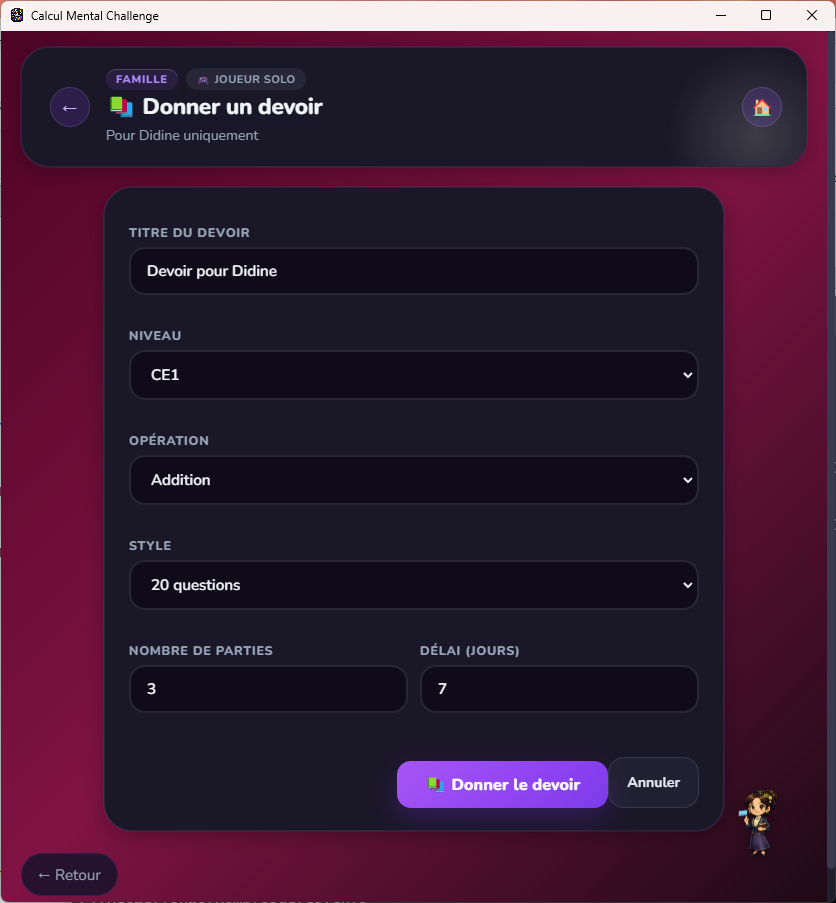
e.g. « Times tables of 7 », « Subtraction review ». Visible to the child in their homework list.
1st grade to high school, additions, subtractions, multiplications, divisions, fractions… all the operations of the app.
20 questions, time attack, lives, expert… and how many games the child must play to validate the homework.
Number of days before expiration. After this delay, the homework disappears from the child's list.
Click on a child from the family dashboard to see their detailed sheet: streak, strengths and weaknesses, records per operation.
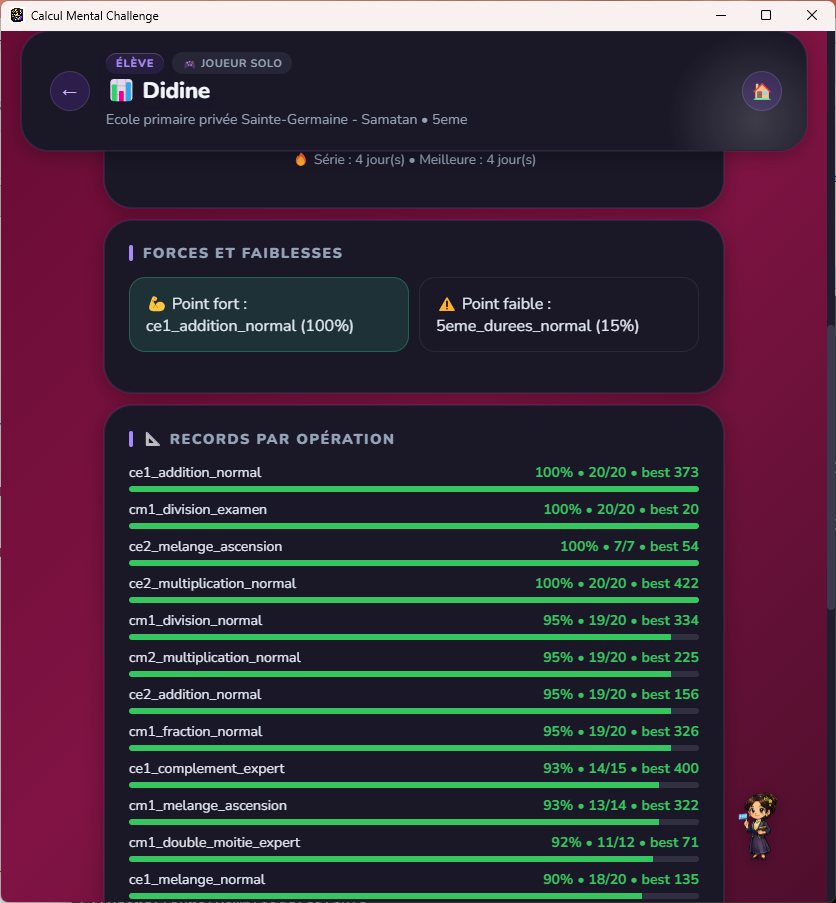
How many days in a row the child has played. Encourages regularity, more effective than a single big session.
The app automatically identifies the category where the child excels and the one to work on — to target your next homework.
Score, accuracy percentage and best result on each level×operation combination.
Beyond family mode, a parent PIN code protects access to sensitive settings (daily time limit, blocking online mode). Configure it in Settings → Parent mode.
SHA-256 hashed and stored locally. No server transmission. Resettable from the parent login screen.
From 5 to 120 minutes per day. The child gets a warning, then is invited to take a break once the limit is reached.
One-click disable for duels, Battle Royale and public rooms if you want a 100% solo or family experience.
The PIN code and time limit stay on the device. Family data (homework, progress) only flows between linked parent and children accounts.
Family mode requires a connection. Solo, ascension and training modes remain fully playable offline.
Better a short daily homework than a long weekly one. The activity streak motivates the child to come back.